The web UI
The web UI is a Leptos app that runs in the browser as wasm. The hub serves it on its port for every path that is not /api, /ws or /mcp. Unknown paths fall back to index.html, so a deep link such as /entity/<id> loads the app. index.html is never cached; the hashed assets are. To build and develop the UI, see Development.
Layout and themes
A sidebar on the left replaces the old top bar. From top to bottom it holds:
- Overview, then + New dashboard. Once you have made a dashboard of your own, the list unfolds under Overview with House first and yours after it.
- My moods, Automations (flows) and Groups.
- My rooms: one entry per room that has something on House, with the number of entities House shows in that room. A room opens at
/rooms/<id>; the old room chips on House are gone, and the rooms list lives here instead. - Home: Energy, Security, Climate (beta, only while the climate engine is on) and Alerts (with an unseen-count pill).
- Settings at the bottom, above the connection badge.
The header above the screen carries a breadcrumb, the theme button and the FR · EN button. The theme button cycles Auto, Night Glass and Ivoire, and the choice is remembered in the browser. FR · EN switches the whole interface between French and English, and the choice is remembered too. Without a saved choice the UI follows the browser language: French for any fr locale, English otherwise. Names that come from the hub or your devices (entities, rooms, flows) are shown as they are.
The themes are Night Glass (dark), Ivoire (a light, warm ivory with sage and honey accents) and Auto, which follows the system. The former Warm Minimal theme is gone: a browser that had saved it opens in Ivoire.
On a phone or a narrow window (below 900 px) the sidebar becomes a drawer. The ☰ button at the left of the header opens it over the page; tapping the dimmed page, pressing Escape, choosing an entry or widening the window closes it.
Home header
The house overview (House, first under Overview) opens with a header above its cards: the date, a greeting, one sentence about the house, a detail line, a row of chips and, when weather is on, a weather card (with a solar card beside it when the solar forecast is on). The overview always has it; your own dashboards show it only when their Show header switch is on. With live view on in Settings → Cameras a Cameras section follows the moods: every Frigate camera, one live 16:9 tile each, side by side on a computer and stacked on a phone; it is hidden while live is off. The overview ends with a Recent alerts list and a See all button.
On a wide window the text sits on the left and the weather card on the right. On a phone everything stacks, and the weather card becomes one compact row under the chips. Without a weather card, the sentence takes the full width and the sunset moves to the detail line.
The header is computed in the browser from what the screen already has: entities, rooms, alerts, the sun from your home location, the weather and the home settings. Nothing is stored for it. When a part has no data, that part hides.
Greeting
The date is written in the UI language, for example "Vendredi 23 octobre" or "Friday 23 October", using the house's local time. The greeting follows the hour:
| Hours | French | English |
|---|---|---|
| 05:00 to 11:59 | Bonjour | Good morning |
| 12:00 to 17:59 | Bon après-midi | Good afternoon |
| 18:00 to 04:59 | Bonsoir | Good evening |
The sentence
The sentence has two halves joined by a comma: the activity first, then the temperature. The first activity row that matches wins. The temperature half is left out when there is no indoor temperature.
| Half | When | French | English |
|---|---|---|---|
| Activity | An alert you have not seen yet (same count as the Alerts badge) | Quelque chose demande ton attention | Something needs your attention |
| Activity | One door, window or garage door open | Ouverture : Fenêtre (Cuisine) | Open: Window (Kitchen) |
| Activity | Several doors, windows or garage doors open | 2 ouvertures | 2 doors or windows open |
| Activity | Dark outside, between 22:00 and 05:59, and no light on | La maison dort | The house is asleep |
| Activity | No light on | La maison est calme | The house is quiet |
| Activity | Anything else | La maison est éveillée | The house is awake |
| Temperature | Indoor temperature below the cold threshold | il fait froid | it's cold |
| Temperature | Indoor temperature above the hot threshold | il fait chaud | it's warm |
| Temperature | Anything else | il fait bon | it's comfortable |
Examples:
- « La maison est calme, il fait bon. » / "The house is quiet, it's comfortable."
- « La maison dort, il fait froid. » / "The house is asleep, it's cold."
- « Ouverture : Fenêtre (Cuisine), il fait froid. » / "Open: Window (Kitchen), it's cold."
The rules behind the table:
- The door or window line uses the entity's name. The room is added in brackets when the entity has one.
- "Dark" means between dusk and dawn at your home location, as the flow canvas computes it.
- A light counts when it is on and not hidden. A light inside a group counts on its own; the group entity does not count, so no light is counted twice.
- The indoor temperature is the sensor you pick in Settings, or else the median of the rooms: each room counts as the mean of its temperature sensors, offline sensors are left out, and so is any sensor that does not read in °C. One outdoor sensor cannot skew it. Outdoor weather sensors are never used. Offline lights, doors, windows and thermostats are ignored everywhere in the header. The sentence and the indoor chip show the same value.
- The cold and hot thresholds come from Settings › Home. They default to 15 °C and 26 °C.
- The same house state always gives the same sentence. It changes only when something in the house changes.
Detail line
Under the sentence, in a muted style, the detail line holds up to two fragments joined by " · ". Each one appears only when it applies, in this order:
- Rain expected within the hour (more than 0.1 mm): « Pluie attendue dans l'heure » / "Rain expected within the hour".
- Frost tonight (a minimum of 0 °C or below), shown from 15:00: « Gel cette nuit » / "Frost tonight".
- The sunset time, shown from two hours before sunset until sunset, or at all times when the weather card is hidden: « Coucher du soleil à 18 h 42 » / "Sunset at 6:42 pm". When the home location is not set, this fragment reads « Coucher du soleil : position de la maison non réglée » / "Sunset: house location not set" instead of a time.
Chips
Chips sit in a row under the detail line. Each one hides when its input is missing.
On a phone (below 640 px) the chips and the weather card use shorter wording, for example "19.6 °C" alone, "Off" for « Chauffage éteint » or "A/C" for "Air conditioning on".
- Lights: the number of lights on, for example « 3 lumières allumées » / "3 lights on". Shown in amber when at least one light is on, and hidden when none is.
- Indoor: the indoor temperature to one decimal, for example « 19,6 °C à l'intérieur » / "19.6 °C inside". Hidden without an indoor temperature.
- Heating: taken from the climate units that have a heat mode. A unit counts as heating when its mode is heat, auto or heat_cool. A cooling-only unit is ignored.
- « Clim en marche » / "Air conditioning on" when a unit is in cool mode. This case wins over the others.
- « Chauffage éteint » / "Heating off" when no unit is heating.
- « Chauffage en éco » / "Heating in eco" when every heating unit has a target at or below the eco setpoint. This case needs an eco setpoint in Settings › Home; without one, the chip hides.
- Hidden in every other case, for example when a heating unit targets above the eco setpoint.
- House mode: the current option of the mode selector, shown as a pill with ▾. Tap it to open the list of the selector's options and pick one. Hidden when no mode selector is set in Settings › Home.
Weather card
When weather is on, the card sits on the right of the header (or under the chips on a phone). It shows the condition icon, the current temperature, the condition, the "feels like" temperature, today's low and high, and the sunset time. Tap the card to open the weather page.
The card hides when:
- weather is off, or the hub has not fetched it yet;
- the last good data is more than six hours old.
When the data is late (older than twice the refresh period) but less than six hours old, the card stays and adds a muted "Data from 9:02 pm" line. A failed fetch alone does not hide the card: the hub keeps the last good data.
Solar card
When the solar forecast is on and its data is less than 24 hours old, a solar card sits beside the weather card (stacked on a phone). It shows today's expected kWh, the day's production curve and tomorrow's forecast. Tap it to open /solar.
Weather page
The weather page is at /weather, opened from the weather card. The Back button returns to the screen you came from. It is not in the sidebar.
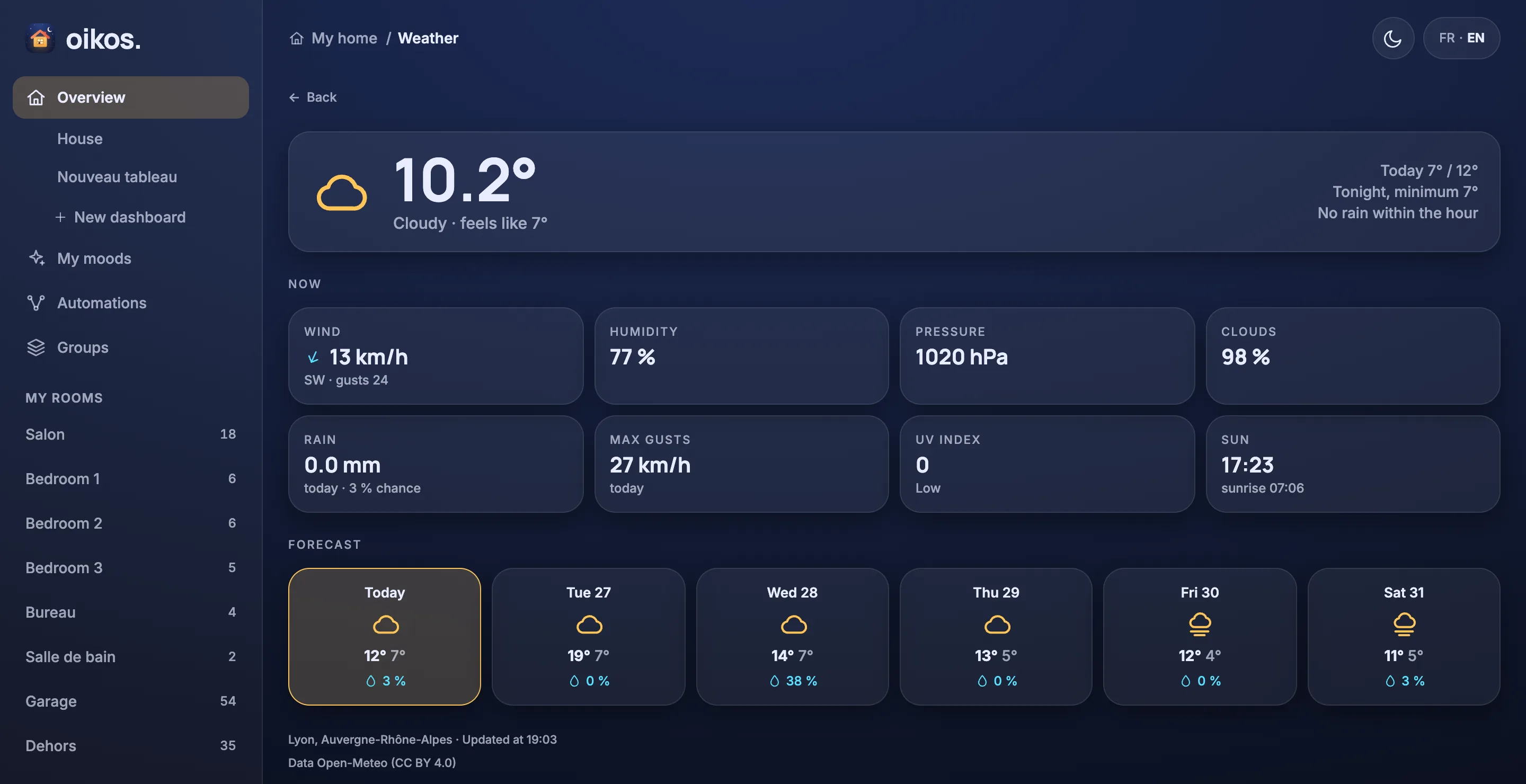
- Top: the condition icon, the current temperature to one decimal, the condition, the feels-like temperature, today's low and high, tonight's minimum and the rain expected in the next hour.
- Now: eight tiles, four across on a wide window and two on a phone. Wind (speed, an arrow for the direction the wind comes from, a compass word and gusts), humidity, pressure, cloud cover, today's rain (amount and chance), the strongest gust today, the UV index with a word (Low, Moderate, High, Very high, Extreme), and the sun (sunrise and sunset).
- Forecast: a Today card, then one card per day for the next five days (six cards in all), each with the weekday, the condition icon, the high, the low and the chance of rain. Tap a card to show that day on the whole page (
/weather?day=YYYY-MM-DD; the card is pressed, and tapping through days does not pile up Back entries). The top then shows the day's condition, high, feels-like high, low and high and the chance of rain, and the heading above the tiles shows the day's name ("Tomorrow", "Thursday 29"). The tiles show the day's strongest wind and main direction, the mean humidity, pressure and cloud cover, the total rain, the strongest gust, the highest UV index, and that day's sunrise and sunset. Tap Today to come back. - Footer: the place (with its region when known), the time of the last update, a stale notice when the data is late, and the Open-Meteo credit.
The page keeps showing the last data however old it is, unlike the header card. When weather is off or not fetched yet, the page says that the weather is unavailable and tells you to turn it on in Settings → Weather.
Dashboards
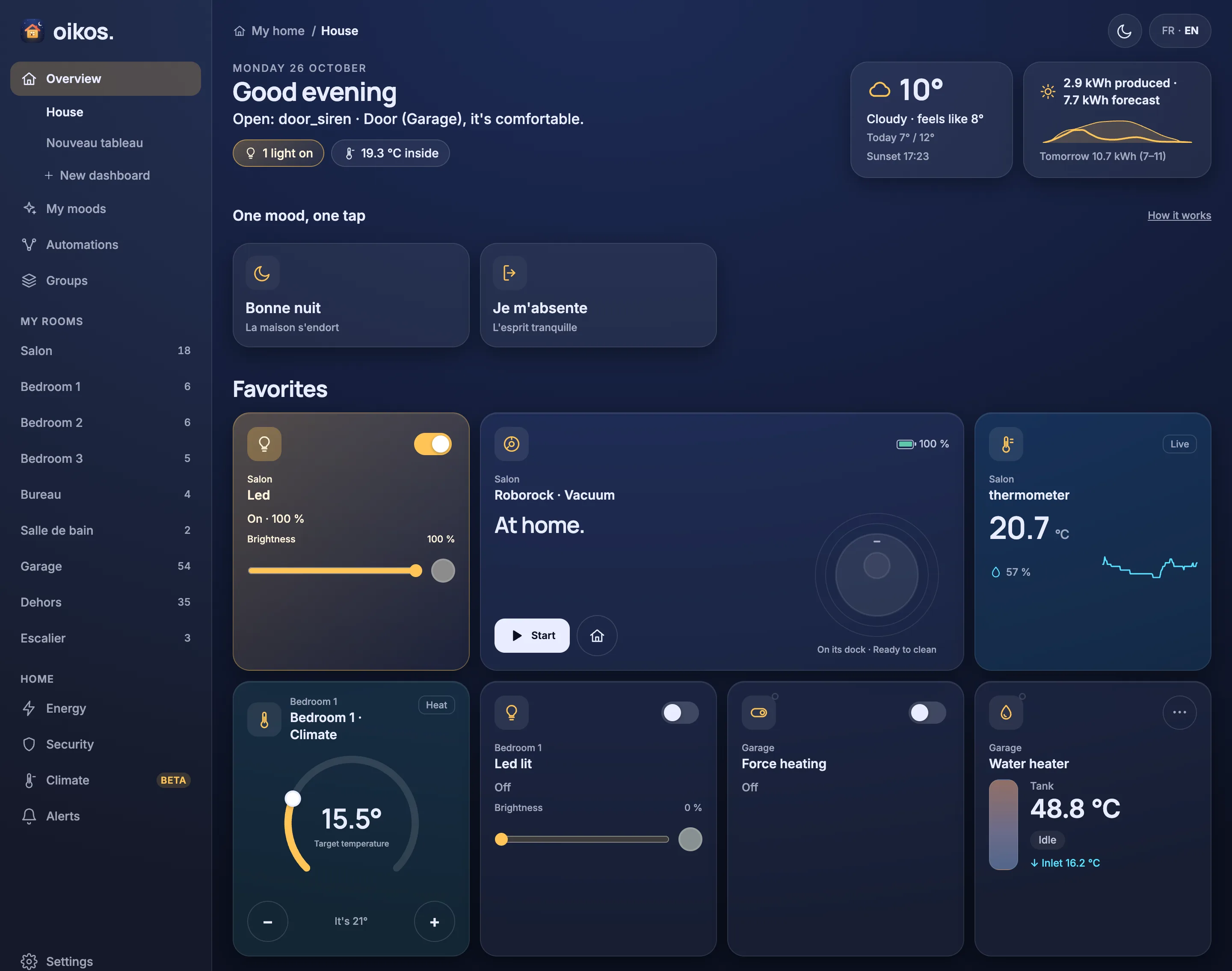
Dashboards (/dashboards/<id>): once you have a dashboard of your own, the sidebar lists the dashboards under Overview. House is always the first entry, and the page the web UI opens on: the comprehensive rooms overview, synthesized by the hub (id "house", non-editable, non-deletable), rendered on the client with the existing rooms-overview screen. Below House are user-authored named dashboards built from widgets. A widget is one of: light, cover, climate, lock, sensor, room-group, flow-button, energy-stat, history-chart, camera, water-heater, each with a kind-specific config and a span from a kind-specific set: 1x1 and 2x1 for most kinds, plus 2x2 for room-group, 2x1, 2x2 and 1x2 for history-chart, and those plus 4x2 (wide) and 6x3 (full width) for camera; a span wider than the grid clamps to its column count. The grid adapts phone (2 columns, up to 600 px) ↔ tablet (4, up to 1200 px) ↔ desktop (6). On the desktop grid each widget keeps the cell it was placed on, so a dashboard can leave empty space between widgets (a thermometer under its room's climate card, for example); the tablet and phone grids show the widgets row by row in that order, without the gaps.
On a user-authored dashboard the pencil at the top of the page enters edit mode (a new dashboard opens straight in it): click a widget to open its config sheet (what it shows, title, size, delete; a history chart also has its range: 1 h, 6 h, 24 h, 7 d or 30 d). Shows points the widget at another entity, room, flow or energy figure of the same kind, keeping its title, size and place, drag a widget by the grip in its tool pill (or, with a mouse, from anywhere on it) to move it, cycle the span with the resize button, then Save or Discard. Both stay disabled until something changed, and the pencil is flagged while a draft is unsaved. In edit mode a panel on the right (at the bottom on a phone) lists what can be added, grouped by kind, each row with its room and device; search narrows it, and clicking a row adds the widget after the last one on the grid. History charts are offered for every sensor, light, switch, binary sensor, cover, number, climate and water heater. On the desktop grid a dashed outline shows the cell the dragged widget will land on, empty or not: a widget of the same size there trades places with it, anything else in the way moves down, and empty rows close up. On a tablet or phone the widget takes the place of the one it is dropped on. Escape cancels a drag, and the arrow keys move a focused grip by one cell. A widget that grows moves what it now covers down. Locks have their own section: a Lock widget shows the lock's state (Locked, Unlocked, Jammed, Offline…) and one button that does the opposite; Unlock asks "Unlock + New dashboard in the sidebar creates a new one at max(order) + 1.
Dashboards persist as MQTT retained payloads under <ui_prefix>/dashboards/<id>. The Home section's placement rule still applies on House: an entity with an energy role or shown on Security leaves House unless its override pins it with homePinned; cover/light rooms still fold into group cards exactly as before. A room's section shows only when the room has at least one card under that rule, so a room whose entities are all hidden or all elsewhere drops off House and disappears from the sidebar too. Its /rooms/<id> page still opens and says "Nothing here yet.", the room pickers still offer it, and it comes back once something visible lands in it.
Moods
A mood (in the sidebar, My moods) is a named list of actions that runs once, top to bottom, when you apply it. See Ambiances for what an action does and how the hub runs it.
Home
Home shows a row titled One mood, one tap, under the header. It holds up to four pinned moods, in their order, four across on a wide window (700 px and up) and two by two on a phone. A tap applies the mood. While it runs, its tile is pressed, and a toast says Good night: done, or how many devices did not respond (Good night: 2 devices did not respond). The toast is the only report you get on Home; the full report is on the mood's page.
- A mood with no actions shows Add a lamp under its name. Tapping it opens the editor instead of applying it.
- When no mood is pinned, the row shows Choose your moods, which opens the page. When there are no moods at all, it shows Create a mood and Add the four examples.
- How it works, a link beside the row title, opens a short explanation.
- The row stays hidden until the list of moods has loaded once.
My moods
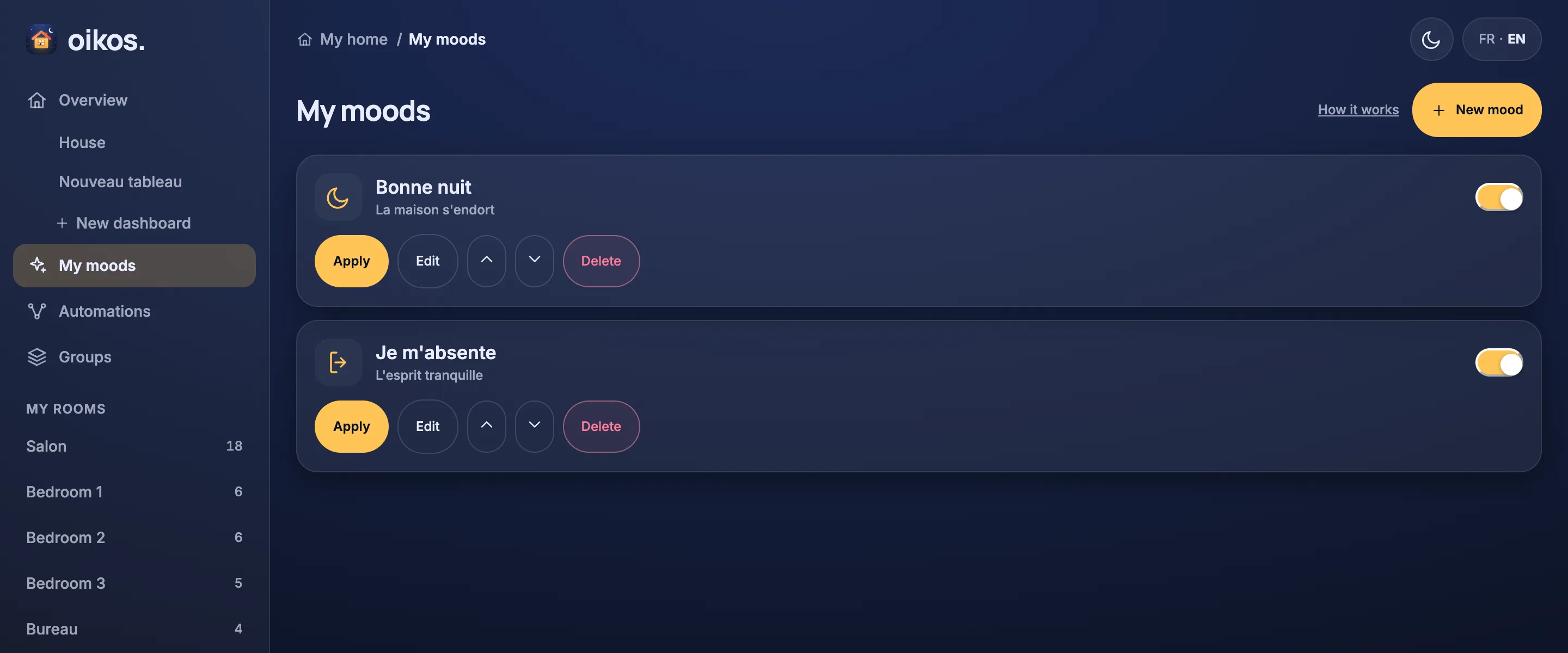
The page (/ambiances) has the title My moods, a How it works link and a New mood button at the top. Below, every mood is a card, in order, with its icon, name and subtitle.
- Show on Home: a switch on the card that pins the mood to the row. Only the first four pinned moods, by order, show on Home. The page says "Only the first 4 pinned moods show on Home." when you pin more.
- Apply runs the saved mood. Edit opens the editor.
- ↑ and ↓ (Move up, Move down) change the order.
- Delete removes the mood after a confirmation that names the mood.
- Last run opens the report of the last run, if the mood ran since this page was opened.
- When the page is empty, it says No mood yet. and offers New mood or Add the four examples. The examples are Good night, I'm heading out, Quiet evening and A little reading; you can edit them like any other mood.
- A mood the hub cannot read shows its reason on its card. It cannot be applied, so only Delete is offered.
Editor
The editor (/ambiances/new, or Edit on a card) has:
- Name (required, up to 60 characters), Subtitle (up to 80) and an Icon, then a Show on Home switch. A new mood starts pinned while the Home row has room.
- Actions, in the order they run. Each one is a sentence with buttons to move it up or down, delete it (✕) and open or close its form (+ / −). Add an action offers four types:
- Every light, plug or shutter: pick the kind (What), then on or off (lights turned on can also get a brightness of 1 to 100 %; shutters open or close). Where is the whole house or one room. Categories include devices you add later, so you do not have to edit the mood when you add a lamp. See which lists the devices in the category, grouped by room, with a checkbox on each; untick a device to leave it out.
- One device: search for a device, then pick one of its commands. A command that takes a value shows a number field.
- Heating: only shown when the climate engine is on. Pick a zone, or every zone. Hold sets a temperature (5 to 30 °C, or Off) and/or a mode (heat or cool) for some Hours (1 to 720); Back to the schedule removes the hold.
- Automation: pick a flow, then Switch on, Switch off or Run.
- Save stores the mood and goes back. It stays disabled until the name is filled in.
- Try it applies the saved version, so it is disabled while the form has unsaved changes. Its tooltip says Save first.
- Delete, on an existing mood, asks for a confirmation and then removes it.
Report
After a run, Last run opens the report (/ambiances/<id>/report), with the time of the run. Each action has an outcome: Done, Failed or Skipped. Failed and skipped actions list the devices concerned and the reason, such as offline. If the mood has not run since the page was opened, the report says Not run since this page was opened.
How it works
How it works (/ambiances/about) explains the same rules as this page. A mood runs its actions once, in order. "Every light", "every plug" and "every shutter" include devices you add later. Only switches shown as a plug count as plugs, so set a switch to show as a plug to include it.
Energy
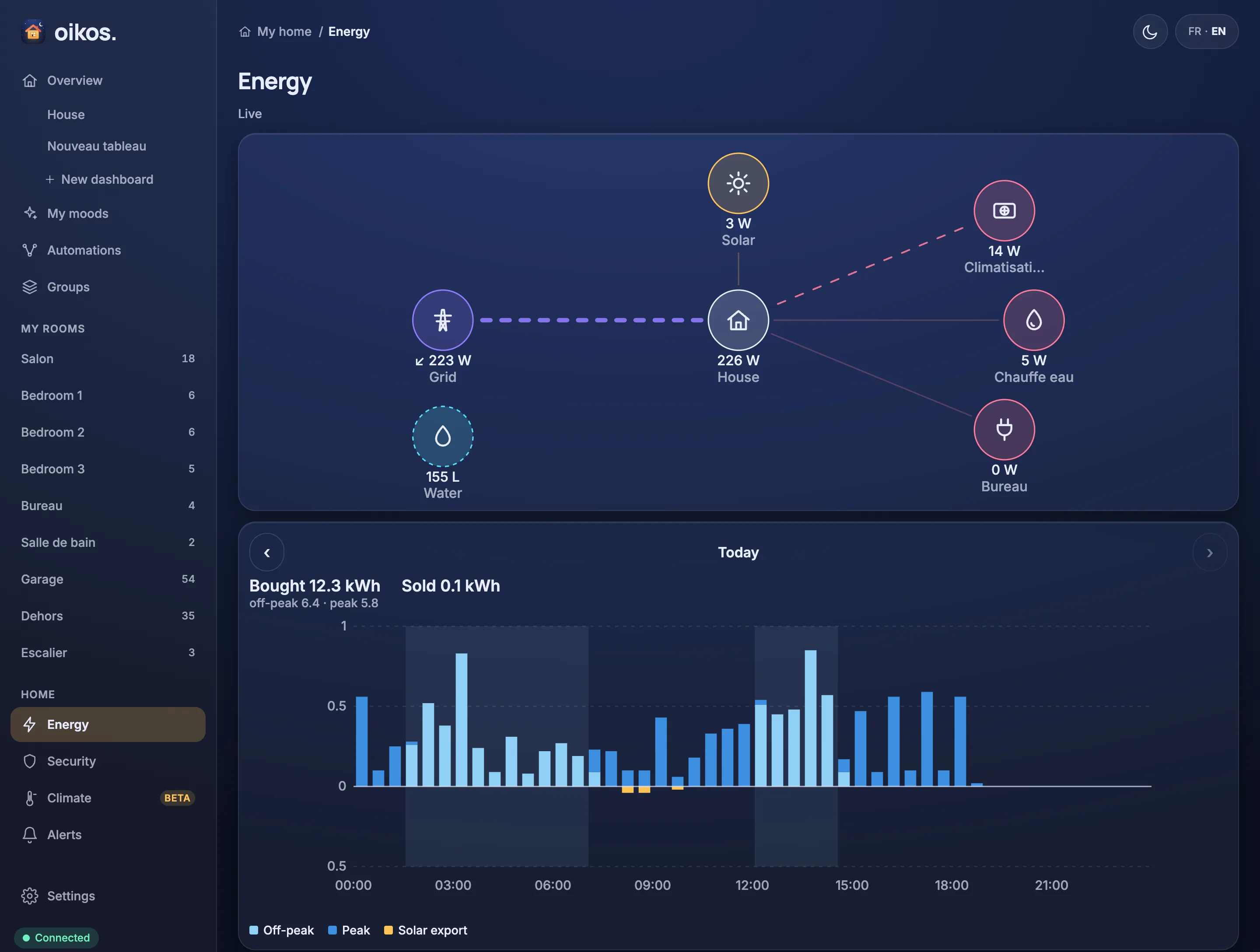
Energy (/energy): the live power flow as in the app. Solar, the grid, the battery and the house are large glowing circles: solar top-left, the grid on the left, the battery below them, and the house in the centre with a ring showing where its power comes from (solar, battery, grid) and its solar share. Consumers are smaller circles on the right, and the water meter, when there is one, is a smaller circle in the battery's place. On a phone the circles stack top to bottom: solar, battery or water and grid on top, the house in the middle, consumers in a row below. Dots travel along each wire in the flow direction, more, bigger and faster with more power; solar feeds the house only, and export runs from the house to the grid. With the system's reduced-motion setting there are no dots, while the wire widths and the ring stay. The diagram has room for three consumers; with more, the last slot folds the rest into "more" and a Show all N consumers button lists them all. A line under the title sums up the flow, and a hint asks you to check the grid or battery sign when the numbers look inverted. Under the diagram come the grid day chart (below), then one card per node, every consumer included, with the live value, the lifetime kWh of its paired energy counter and the kWh since midnight. Tap a card's title to open its sensor. Without any energy role, the screen says how to set one.
Flux, chosen in Settings › Appearance, draws the same live power as a Sankey: sources on the left (solar, grid import, battery discharge), the house with export and battery charging in the middle, every consumer on the right with Not itemised, hatched, for the rest; the house bar is painted in the colours of what flows into it; band thickness is the power, more than eight consumers fold into +N others (four on a phone), four chips above sum it up, and tapping a bar opens its sensor.
Orbite, also chosen in Settings › Appearance, draws the live power as two rings round the house: the inner ring is where the power comes from (solar, battery discharge, grid import), the outer ring where it goes (export, battery charging, every consumer, then Not itemised); both rings add up to the same total, so the solar arc sits over the export and charging it pays for. The grid keeps one colour on both rings, and so does the battery. The house's power and its solar share sit in the centre; a Coming in and a Going out list beside the ring (under it on a phone) give each value and its share. Dots run round each arc, faster with more power, and stop with the system's reduced-motion setting. Consumers fold into +N others as in Flux, and tapping a row or an arc opens its sensor. In the Ivoire theme all three views use a brighter palette.
Roles come from the energyRole override (solar, grid, grid_export, battery, house, consumer, water), set from the entity sheet or over MCP.
Between the diagram and the cards, the grid day chart (a "Today" card) shows what crossed the grid meter on one day, in half-hour bars. What you bought from the grid sits above the zero line, off-peak (light blue) under peak (dark blue); what you sold, the solar export, sits below it in yellow. The off-peak periods are shaded behind the bars. Above the chart, the day's totals: bought with its off-peak and peak split, and sold. ‹ and › move to the previous or next day, from the first day with data up to today; today's bars fill up as the day goes on, refreshed about once a minute while the page is open. Hover or tap a bar for its half hour and values.
The chart reads the lifetime counters paired with the entities that carry the grid role (bought) and their export twin or a grid_export entity (sold), so it needs history and a grid meter with an energy counter. The split comes from the off-peak hours in Settings › Home; without them every bar is one colour ("Bought"). A day keeps the off-peak hours that were in force on it, so changing your contract does not recolour past days.
Security
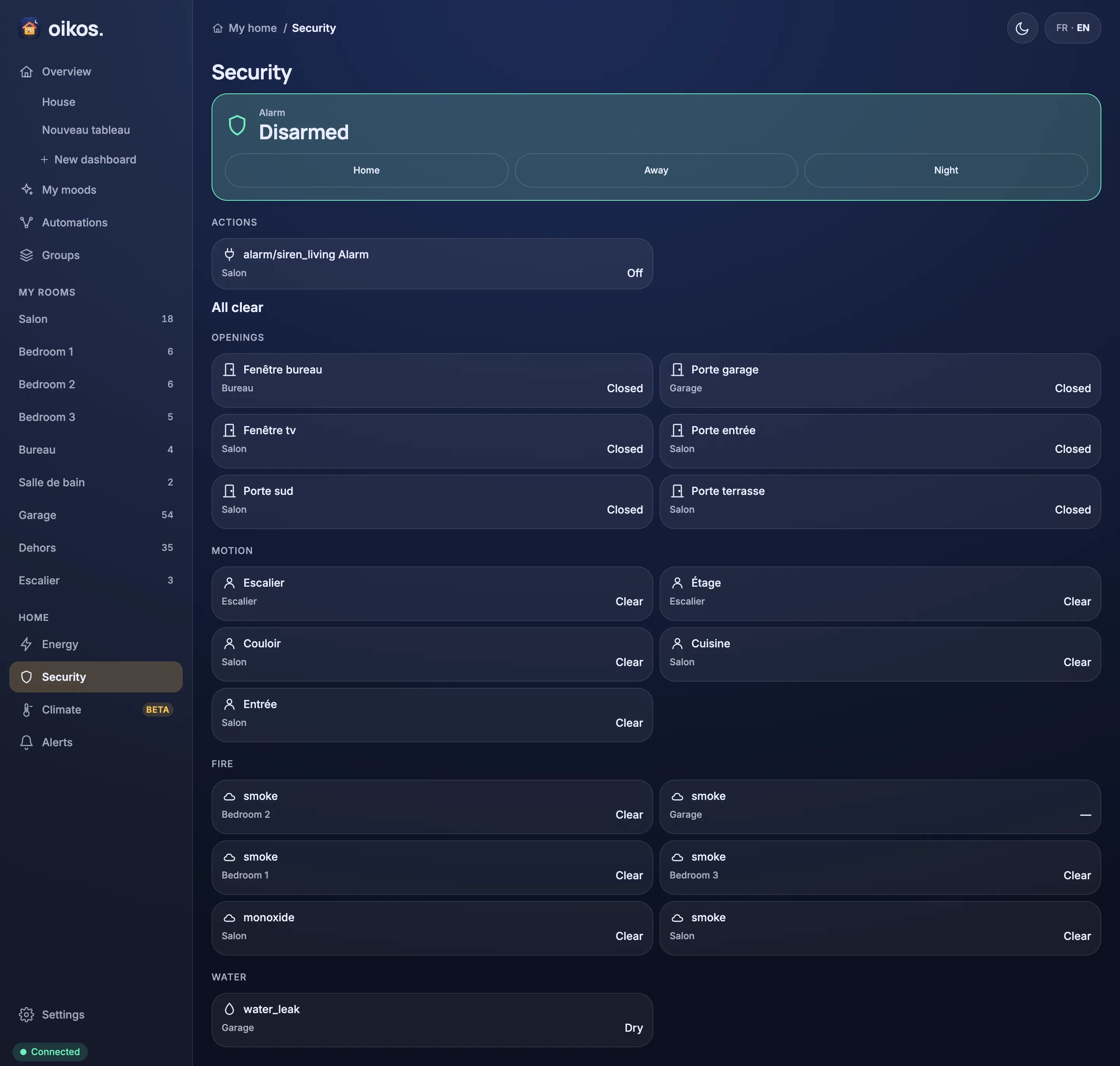
Security (/security): the alarm panel as a hero card (the arm modes Home, Away and Night the panel offers, Disarm, an inline code field when the panel asks for one, and the exit or entry countdown and the cause while it lasts), the opted-in actions (securityAction on a switch or a button; a tap asks first unless securityAsk is off, and turning a switch off never asks), a summary line ("1 smoke · 2 open" or "All clear"), the safety and intrusion sensors in sections (Openings, Motion, Fire, Water, Other) as two-column tiles with the name, room, state and how long ago it changed, and the last five alerts of the camera, alarm and security channels with a See all link to Alerts. securityHidden takes a sensor off the tab; hiding it on Home does not.
Climate
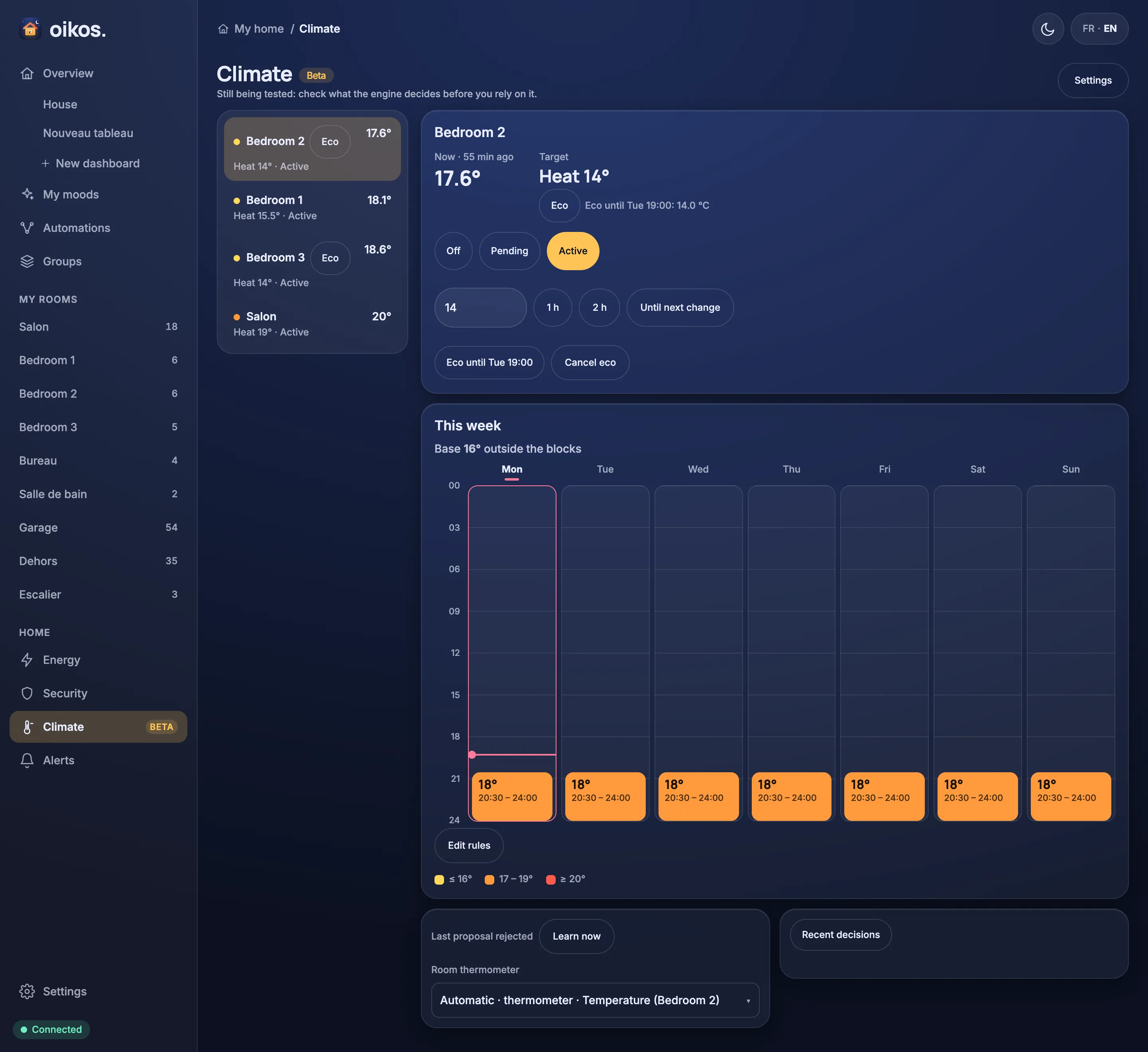
Climate (/climate, beta) spans the page. The rooms are listed on the left (a row of chips on a phone), each with a dot in the colour of its decided temperature, an Eco pill while it is in eco, its reading and a line saying where it stands ("Heat 14° · Active", "Pending · no schedule"). The selected room shows its status: the reading and how long ago it came, the target with the source of the decision and its reason, the state (Off, Pending, Active), and, on an active room, a quick hold of a setpoint for 1 h, 2 h or until the next change in the schedule; any hold is listed with Clear. The eco row offers Eco until…, which starts the room's own eco until a date and time; while it runs, the row reads "Eco until Tue 3 Nov 19:00" with Cancel eco, and the status card shows the "Eco" source. A room whose state is Off has no eco row.
Under the status comes the room's week as a calendar: seven day columns with the hours going down, each block coloured by its temperature (yellow below 17 °C, orange from 17 to below 20 °C, red from 20 °C, dashed grey for Off; the legend reads "≤ 16°", "17 – 19°", "≥ 20°") and a line at the current time on today. Tapping a block shows its times. Below come the pending proposal, the learning line with Learn now, the room thermometer field (the entity picker, opened on the thermometers) and the recent decisions. Settings opens the house settings sheet, which also holds the eco settings (the eco setpoints, the fan speed and the presence list for the whole-house eco while nobody is home), and the engine's banners (an error, an invalid house document, or "History is off" when no history database is set up) sit under the title. While editing the rules or a proposal, a block's ends drag up and down, tapping an empty spot on a day adds a two-hour block there (base + 2 °C), and a block's editor has day chips to add it to, or remove it from, other days. A room without rules offers Create schedule: an empty heating week (base 16 °C) to fill in; saving it approves it and a pending room becomes active. While editing, the base (the temperature outside the blocks) can be changed or set to Off. Switching rooms keeps an edit in progress. See Climate.
History
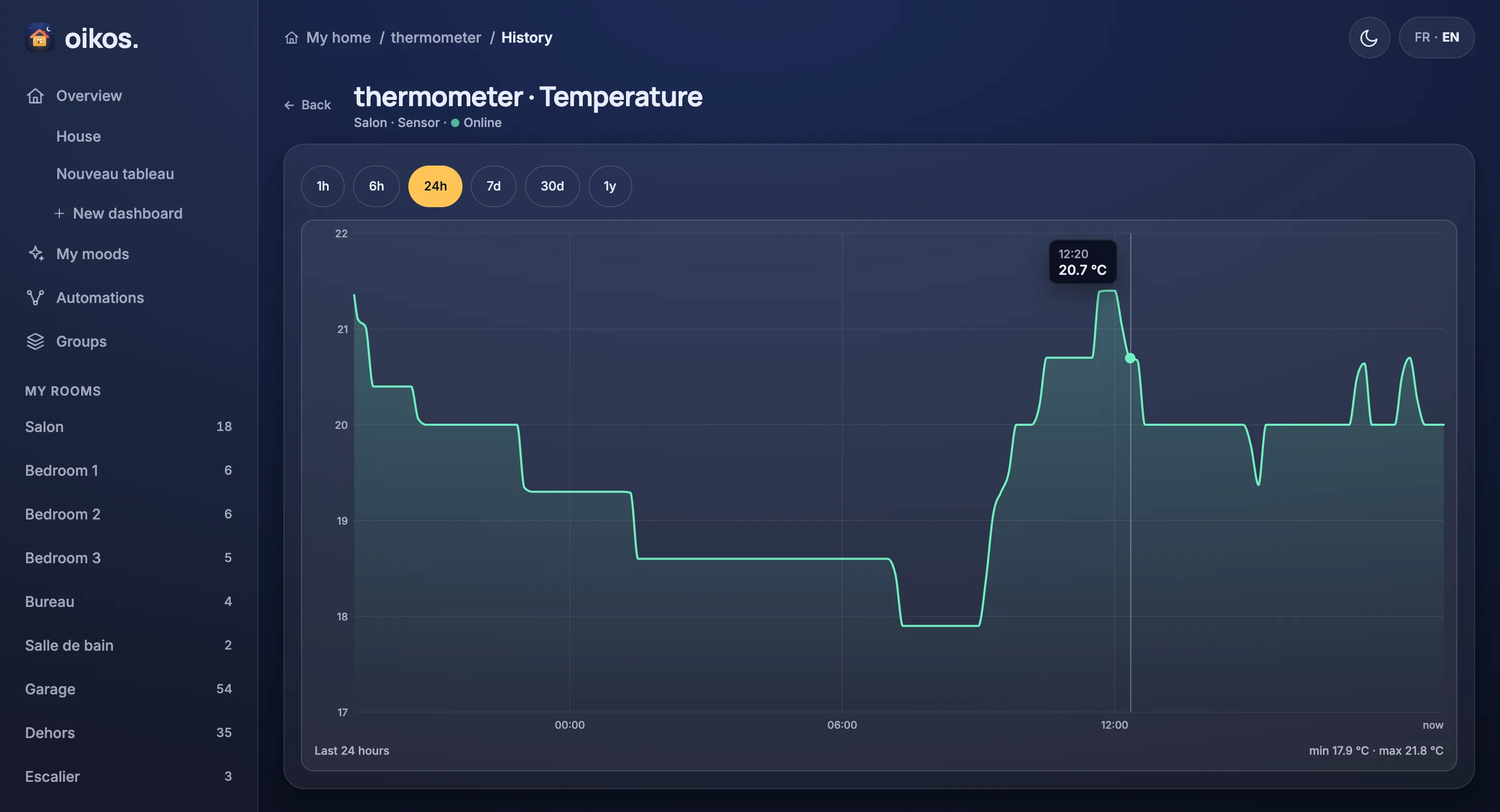
History (/history/<id>): a full-screen chart of one entity over 1 h, 6 h, 24 h (the default), 7 d, 30 d or 1 y, picked with range chips (the range is kept in the address, as ?range=7d). The title is the entity's name and type, with its room and availability under it. A numeric sensor draws a smooth line over a soft fill, with round tick labels on the left, a faint grid and a time axis that ends at "now"; on 7 d, 30 d and 1 y a light band shows each bucket's min to max. Hover the chart (or touch and drag) for a crosshair and a card with the time and value, plus the min–max on the long ranges. Under the chart, a footer names the range ("Last 24 hours") and gives the minimum and maximum of what is drawn. Lights, switches, binary sensors and covers keep a thin step line, with their On/Off words (0 and 100 for a cover) on the axis. An energy counter draws daily bars over 7 d, 30 d and 1 y, with the range's total in the footer, and hovering a bar shows its day and total; over 1 h, 6 h and 24 h it draws the power of its paired power sensor as a line, or a single daily bar when it has none. The same chart serves the history widget on dashboards. It needs [history] url; see History.
Groups
Groups (/groups): the hand-made groups, one row each with its kind icon, name and member count, and a New group button. A three-step wizard (Type, Members, Name and room) creates a group (/groups/new) or edits one (/groups/<id>/edit); a member can only be of the group's kind, never another group. The group sheet (/group/<id>) has the group's controls, its members (each opens its own sheet, with its own toggle where that makes sense, and a mismatch or "Not found" chip when it no longer fits) and the settings: Show in Favorites, Hide members on Home, Edit group and Delete group, which names the flows that use the group before it confirms. See Groups and virtual entities.
Cards
Every device card has the same frame: an icon tile, the room (left out under a room's own heading and in a sheet, where the room is already plain), the name, a short state line ("On · 14 %" / "Allumé · 14 %") and, at the top right, the card's main control (a toggle, a badge or a ⋯ menu). The words follow the FR/EN switch. A tile shows what you use every day; its sheet shows the same card with every control the device has.
- Light: toggle at the top right, brightness slider and colour swatch at the bottom.
- Switch: toggle and its state.
- Climate: the target sits in a ring. Drag the ring, or focus it and use the arrow keys (Page Up/Down: 1 °C, Home/End: the ends); the value is sent when you let go, or 0.6 s after the last key. − and + step at once. The ring follows the mode's colour and is greyed out while the mode is off. The mode is a badge you can change in place; the fan speed is in the sheet.
- Temperature: the value large, the humidity of the same device (or its soil moisture, on a soil sensor; that reading then has no card of its own), and a small curve of the last 24 hours (it needs the history database; without it the card simply has no curve). The badge reads "Live" while the sensor reports, and "3 h ago" / "2 d ago" once it has been quiet for 3 hours, which is how a flat battery shows.
- Other sensors: the value and unit large. A sensor that reports a number (power, energy, lux, CO₂, humidity, a battery and so on) also gets the small curve of the last 24 hours under its value. Clicking the curve opens its history chart (on a humidity card the value does too); the rest of the card still opens the sheet. A sensor that reports text has no curve, and neither does one with no recorded history. After a hub restart, a sensor that does not keep its state on the broker shows its last recorded value (with the history database) instead of a dash, until it reports again.
- Vacuum: two columns wide (a full row on a phone), a sentence for what the robot is doing ("At home.", "Cleaning.", "Needs help."), its battery, Start / Pause / Resume and Send home. Other actions and the fan speed are in the sheet.
- Water heater: a tank picture next to the temperature, an activity chip (the average heating power when the device reports it, else the mode) and the cold-water inlet temperature; ⋯ opens the sheet with the target and the mode, when the heater supports them.
- Cover: open, stop and close buttons, a position slider and a "Moving" badge while it moves.
- Lock: the state in words and one button that does the opposite; it asks first before it unlocks.
- Door opener, Chime and Siren (a switch with its Show as type set in the sheet): the opener has one Open button that asks first by default, the chime one Play button, and the siren a toggle that reads "Ringing" while on and asks before ringing.
- Alarm panel: the state, one button per arming mode and Disarm, with an inline code field when the panel asks for one.
- Binary sensor: a state word, with the icon tinted while it is on.
- Number, Select and Button: a slider over the range, a dropdown over the options, one wide press button.
- Group: a hand-made group is one card of its own kind (light, cover, switch, climate, water heater, number, select, button or vacuum), controlling all its members at once.
Entity sheet
Entity sheet (/entity/<id>): a header with the name, room, type and availability, then:
- Controls: the device's card with all its controls (see Cards), and a View history → link to History. A light also gets a colour panel, and a generic entity (lock, fan, siren, scene, text) the panel of its own controls.
- Settings: the override editor, which keeps the entity's overrides on the hub. Its sections show only what fits the entity: General (name, Favorite, Hide from Home or Show on Home, room), Type (Show as) and Main control, Light (what it turns on at), Security (Show on Security, Ask before acting), Display and energy (card style, energy role, Invert sign, icon and energy counter) and Climate presets. Save keeps the edits and Reset to defaults clears the overrides.
- In groups: the hand-made groups the entity belongs to, when there are any.
- Device & diagnostics, folded: the device information, the raw state value and attributes, and the time of the last update.
Back, on every sheet and detail page, returns to the page it was opened from, one step at a time: dashboard → group → member → history unwinds in that order. A form you saved (new or edited group, new flow) is skipped. A page opened directly, from a link or after a reload, goes back to its parent: Alerts for an alert, Flows for a flow, Groups for the group wizard, the entity for its history, the House dashboard for the rest.
Devices
Devices (/devices, reached from Settings › Zigbee2MQTT): the administration view of the Zigbee devices, sorted by name, with a count ("N of M"). Each row shows an availability dot, the device's room (the rooms of its entities, or "No room"), its model and vendor, and badges for a firmware update (the new version), battery, link quality and entity count. Tap a row to list its entities, each opening its sheet. The search matches the name, room, model, vendor and IEEE address. At the bottom, the ignored MQTT topics with the reason each was ignored.
Settings
Settings (/settings): a short list, one row per page, with a status on the right. A row opens its page at /settings/<page>, which has a Back link and its own breadcrumb (Settings › page):
- Home (Maison,
/settings/home): the home header settings and the off-peak hours, described below. - Alarm (
/settings/alarm), status Off, Disarmed, or the armed mode: the optional native alarm. An Enable switch turns it on and off. The page lists the sensors (with their kind, the three mode ticks and instant or delayed), the sirens (an entity, or an MQTT topic with its payloads and a Test chirp button), the remotes with their signal names, presence (the trackers and the arm and disarm switches) and the timing (the delays and the motion rule). See Alarm. - Appearance (
/settings/appearance), status the current theme: the theme switch (Auto, Night Glass, Ivoire), the same choice as the header's theme button, and the Energy view (Classic, Flux, Orbite), saved on the hub so every browser shows the same one. Under the choice a small moving preview shows the chosen view with sample values. - Zigbee2MQTT (
/settings/zigbee2mqtt), status the number of firmware updates waiting, or the bridge state when there are none: the bridge (version, coordinator, permit join, state), the updates waiting, the counts (devices, entities, primary entities, areas, ignored topics) and the way to the devices list. - Broker (
/settings/broker), status Online, Connecting… or Offline: the MQTT connection, with the reason when it is down. - AI assistants (MCP) (
/settings/mcp): the endpoint with its transport, and copy-ready connection snippets for Claude Code, Codex and Claude Desktop, built from the page's origin, so they always carry the hub's real address. The snippets are also in Talking to the house (MCP). - About (
/settings/about), status the version: the product, its version and the hub's address.
The Home page (Maison in French, /settings/home) holds the settings of the home header and the off-peak hours, with one Save button for the whole panel. Its fields:
- Eco setpoint (°C): from 5 to 30. Leave it empty to turn off the "Heating in eco" case.
- Cold below (°C) and Hot above (°C): the thresholds of the sentence, from 5 to 35. Each one shows its default (15 and 26) as a placeholder when empty. The cold threshold must stay below the hot one; an invalid value shows its error next to the field.
- Mode selector: the select entity behind the house mode pill. Choose "None" to hide the pill.
- Indoor sensor: the temperature sensor for the indoor value, chosen with the entity picker, which opens on the thermometers. "Automatic (median of rooms)" uses the median of the room values.
- Off-peak hours: the off-peak periods of your electricity contract, as start–end times (Add a period, Remove). A period may cross midnight (22:00–06:00); periods must not overlap. The same hours apply every day. A change applies from the start of the day you save it; earlier days keep the hours they had, and the first hours you set also cover the days recorded before them.
Picking an entity
Every field that asks for an entity (the climate and home settings, the alarm's sensors, sirens, remotes and trackers, a flow card's entity, a mood's device action, a power sensor's energy counter, a group's members) opens the same picker. The closed field shows the chosen entity with its device, its room and its current value.
- Search: type part of a name, a device, a room or a type (
temperature,interrupteur), in either language and without accents; the id works too. The weather entities answer to their French names too (météo,pluie). - Chips: a field that needs one kind of entity opens on it (thermometers for the outdoor temperature, for example); All lists everything the field accepts, and + Diagnostic (a toggle) adds the diagnostic, configuration and hidden entities.
- Rows: each row shows the entity, its device on the second line, and on the right its value and how long ago it changed, so two "Backlight mode" switches from two plugs are told apart.
- On a computer it is a window with the rooms on the left, each with its number of matches, and the entities on the right. On a phone it fills the screen and groups the entities under room headings.
- Pinned row: a field with a default shows it first, for example "Automatic" or "None"; pick it to clear the field.
- Keys: ↑ ↓ move, Enter picks, Esc closes. The close button, a click on the backdrop and the browser's Back button also close it.
- Fields that take several entities keep the picker open: tick each one, then Done (N), with the number picked. The chosen ones stay as chips under the field; tap a chip to remove it.
- With All and no search, the first 200 entities are shown; type or pick a room to see the rest.
- An entity the house no longer has stays in the field, marked "missing", until you replace or remove it.
Alerts
Alerts (/alerts): the push alerts the hub keeps in oikos/push/history, with channel chips (All, Alarm, Security, Camera, Energy, Climate, System, Misc) and day groups (Today, Yesterday, then dates), and a "Recent alerts" section at the bottom of Home and of Security (the last five alerts of the camera, alarm and security channels). The detail (/alerts/<id>) shows the snapshot (a ▶ button plays the clip), the title and body, the channel and a "Resolved" badge when it is, the date, up to three of the alert's own buttons, Open device when the alert names one the house knows, and where it came from. These are the same screens as the Android app; the body stays in the producer's language. See Push notifications and Cameras (Frigate).
Flows
Flows (/flows, /flows/<id>, /flows/new): the flows list, grouped by room (or ungrouped), with search; status chips (All, On, Off, Needs attention) with their counts; a trigger filter (device state, schedule, sun, button or event, manual); sorting by name or last run; a List/Cards view; an enable switch per flow; a ⋯ menu per flow (open it, move it to a room, delete it after a confirmation); and a New flow button. Each flow opens on a full-bleed canvas. See Flows for what the canvas shows and how to edit it.