Flows (automations)
A flow is an n8n-style automation: a small graph of nodes stored as one retained JSON document under oikos/automation/<id> on the broker (the id is [a-z0-9_-]{1,64}). The hub subscribes to that prefix, validates every document it reads, and runs the valid, enabled ones. An invalid document is kept and shown with the reason, but never runs. A flow needs at least one trigger node, no cycle, and valid parameters on every node.
{
  "id": "living_led_motion", "name": "Living LED on motion", "enabled": true, "mode": "restart",
  "nodes": [
    { "id": "motion", "type": "trigger.state", "params": { "entity": "<motion sensor id>" } },
    { "id": "moving", "type": "if", "params": { "op": "eq", "value": true } },
    { "id": "on", "type": "command", "params": { "entity": "<light id>", "command": { "type": "turn_on" } } },
    { "id": "wait", "type": "delay", "params": { "for": "5m" } },
    { "id": "off", "type": "command", "params": { "entity": "<light id>", "command": { "type": "turn_off" } } }
  ],
  "edges": [
    { "from": "motion", "to": "moving" },
    { "from": "moving", "port": "true", "to": "on" },
    { "from": "moving", "port": "false", "to": "wait" },
    { "from": "wait", "to": "off" }
  ]
}
Entity ids come from the web UI or from the search and list_entities tools.
Node kinds
The parameters of each node are in Flow nodes.
- Triggers start a run:
trigger.state: an entity's state changes.trigger.signal: a remote press, an event entity or a tag scan.trigger.schedule: a five-field cron expression in the house time zone (the time zone of your home location, set in the setup wizard or Settings → Location; the hub's system zone when none is set).trigger.sun: sunrise, sunset, dusk or dawn, with an optionaloffset_minutes.trigger.manual: a button you press on the card (see Manual trigger). It has an optionalvalue: an on/off bool, a number or text.
- Checks branch:
switchcompares one value with up to 10 rules and has one output per rule (see Branch on several values).time.betweenis true inside a daily range of the clock (see Only at certain hours).ifcompares a value withvalueusingop(eq,ne,gt,lt,gte,lte), or usesop: is_dark, which is true between civil dusk and civil dawn at the configured point. Giveis_darkanoffset_minutes(the card's Shift field) to move that window:-30makes it dark 30 minutes before civil dusk and keeps it dark until 30 minutes after civil dawn. The two outputs aretrueandfalse. Addaverage(for example15m, at most24h) to compare the mean of the entity's readings over that window, the newest included, instead of its current value: a temperature whose 30-minute average is 19 or less, rather than one noisy reading.
- Actions do something:
commandsends a command to an entity.notifysends a phone push notification.flow.enableenables or disables a flow, its own by default.
- Waits pause the run:
delaywaits forfor, for example90s,5mor1h30m. With an optionalup_toit waits a random time between the two.
The sun nodes and is_dark read the house location. Set your home location in the setup wizard or Settings → Location; without one the hub uses Paris, and the web UI shows a "Paris fallback" badge on sun cards. See the Settings reference.
Branch on several values
An if has two outputs. A switch has one output per rule, so one card can sort a value into bands. Each rule is a comparison (eq, ne, gt, lt, gte, lte, or between, which includes both ends). The outputs are named 1, 2, ... after the rules, and otherwise when you turn it on.
By default the first rule that matches wins. Turn on all to follow every rule that matches. Like an if, a switch can read another entity and can use average.
{ "id": "band", "type": "switch", "params": {
    "entity": "sensor_temperature",
    "rules": [
      { "op": "lt", "value": 18 },
      { "op": "between", "value": 18, "to": 22 },
      { "op": "gt", "value": 22 }
    ],
    "otherwise": true } }
In the editor, add a Switch card from the library, then add, reorder or delete rules in its settings. The card shows one labelled output per rule; wires follow their rule when you reorder or delete rules. An unknown value follows otherwise (or nothing when it is off), unless an ne rule matches it.
Only at certain hours
A time.between card sends the run to in or out depending on the time of day: from is included, to is excluded. A range that ends before it starts crosses midnight, so 22:00 to 06:00 covers the night. Times are HH:MM, 24-hour, in the house time zone.
{ "id": "daytime", "type": "time.between", "params": { "from": "07:00", "to": "22:30" } }
In the editor it is the Time of day card in the library. It needs no entity, so it works after a schedule or a sun trigger.
Values in a notification
A notify card's title and body can show live values. In the editor, + Value under each field opens the entity picker and inserts a placeholder at the cursor; a Preview line under the body shows the message filled with the house's current values. The hub fills the placeholders when the step runs.
| Template | Sent in English | Sent in French |
|---|---|---|
{weather_temperature} | 10.1 °C | 10,1 °C |
{weather_temperature:0} | 10 °C | 10 °C |
{weather_today_max - weather_today_min:1} | 5.4 °C | 5,4 °C |
{weather_tomorrow_precipitation * 2} | 0 mm | 0 mm |
{weather_condition} | Cloudy | Nuageux |
{trigger} | the value that started the run | the same |
{{ and }} | a literal { and } | the same |
- A placeholder reads an entity's value with its unit.
:Nrounds to N decimals (0 to 6); without it a number shows at most 2 decimals. - Maths uses
+ - * /and parentheses. Put spaces around operators:a-bis a valid entity id,a - bis a subtraction. - On/off and text values are translated (open/closed, detected/clear, weather conditions, cover, alarm and climate states).
- A value that is unknown when the step runs prints
?; the push is still sent.{trigger}prints?in a run that no state change started (a schedule, the sun, Run now). In a run started from a Manual card with a value,{trigger}prints that value, with no unit (a text value is worded like any trigger text). - The language is the web app's language when the flow is saved, stored as the card's
lang(enorfr). - A text that does not parse, or a placeholder naming an entity the house does not have, is refused when the flow is saved.
How a run goes
A run follows the graph from the trigger that fired, depth first. A branching step records the output ports it followed, and the canvas lights those wires. A failing node ends the run as failed at that step. A schedule tick that comes while the broker link is down is recorded as a skipped run, since its commands could not go out. A non-trigger node with no incoming edge never runs. A manual run (the Run button, run_flow) starts from the flow's first trigger node and is refused when the flow is disabled, invalid, or already running. A run can also start from a chosen Manual card (see Manual trigger).
The scalar is the one value of a state that triggers and if compare: the on/off bool, the number, the text, a light's on, a cover's state.
mode says what a trigger does while a run of the same flow is still active. single (the default) ignores the new trigger and records a skipped run. restart cancels the active run and starts a new one, which is what makes "5 minutes after the last motion" work: motion coming back cancels the pending delay.
Two low-level settings, in the advanced section (see the Settings reference): topics.automation_prefix (default oikos/automation) and automation.runs_kept (recent runs remembered per flow, default 20). Runs live in memory only: a hub restart forgets them, the flow definitions stay on the broker.
Manual trigger
A trigger.manual card starts a run when you press its ▶ button, like Node-RED's inject node. Use it to test a branch or to run a flow by hand. Its optional value (on, off, a number or text) is the value the run carries:
{ "id": "test_on", "type": "trigger.manual", "params": { "value": true } }
{ "id": "kick", "type": "trigger.manual", "params": {} }
- A run started from a card with a value makes an
iforswitchthat has no entity compare that value, and{trigger}in a notify text print it. Aniforswitchafter a card with a value cannot useaverage, since there is no entity to average. After a card without a value, aniforswitchmust name an entity, as after a schedule or sun trigger. - The run is marked manual and the Runs drawer shows "▶ manual · on" (or "▶ manual" without a value). The step detail reads
manualormanual: <value>. - A card press follows the flow's
modewhen a run is active:singlerefuses it ("a run is active"),restartcancels the active run and starts the new one. Run now, which names no card, is refused while a run is active in both modes. - A flow with several Manual cards can run from any of them: pass the card's id, as
{"node": "test_on"}in the body ofPOST /api/v1/flows/{id}/runor as thenodeargument of therun_flowMCP tool. An id that is not a Manual card of that flow is refused. Withoutnode, the run starts from the first trigger node, and carries its value if that node is a Manual card. - A disabled, invalid or unknown flow is refused, as for Run now.
- In the editor, the card's settings have an optional Value field (No value, On, Off, Number or Text). The ▶ button is greyed out in edit mode ("Save to run from here"), since the saved flow is what runs, and on a disabled flow.
Rooms
A flow can sit in a room: its optional area is an area id, and it only decides where the Flows page lists the flow; what the flow runs does not change. The hub checks it on save. An unknown room is refused, a room name is resolved to its id, and Unassigned is not a room for a flow. A room id already stored and since deleted is kept as it is, so it never blocks a save. Invalid flows keep their real name and room in listings.
The Flows page
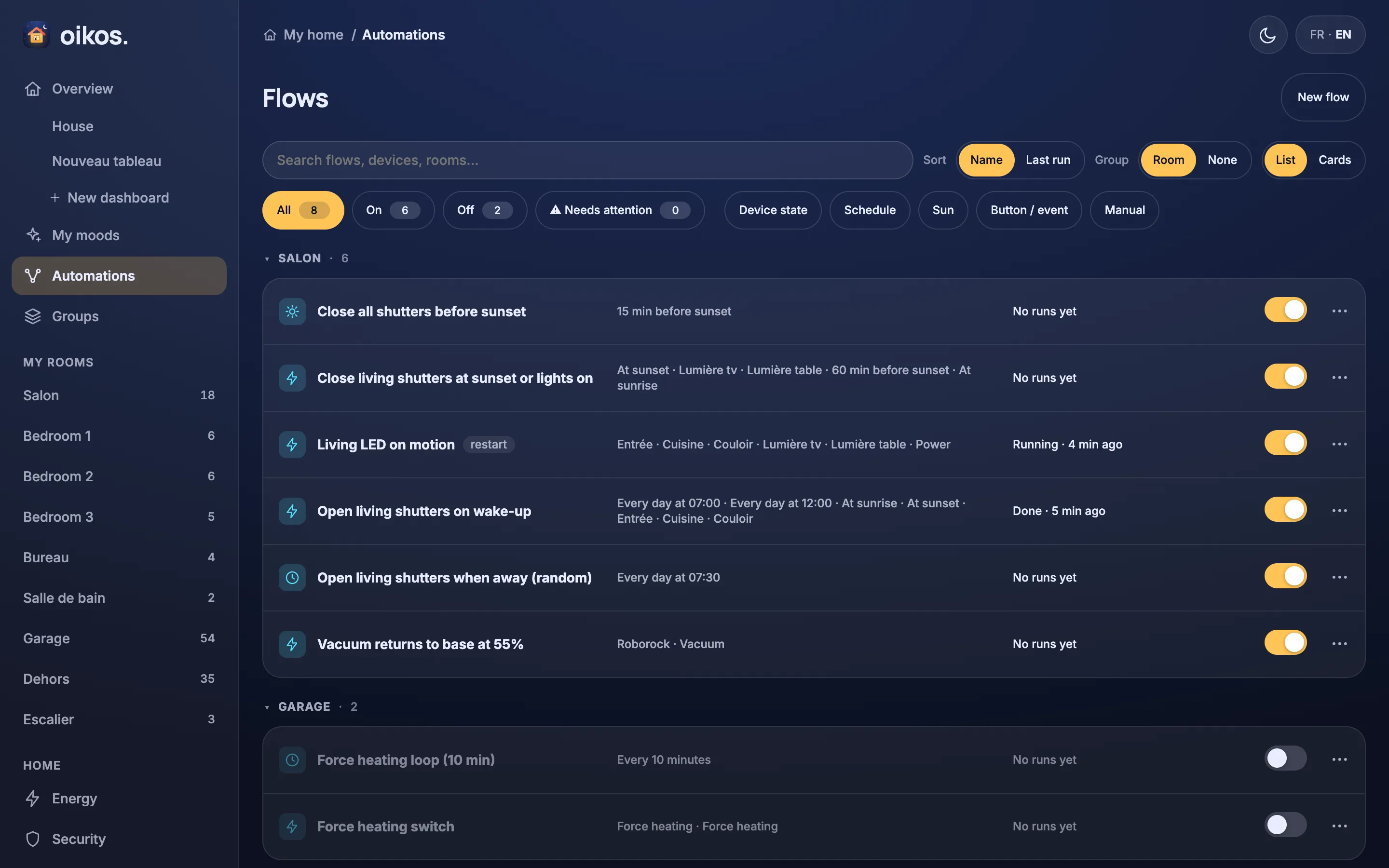
The Flows page (/flows) has a New flow button and a bar to find flows:
- A search box over name, description, trigger summary (which names the trigger devices) and room, ignoring case and accents.
- Sort by Name or Last run, Group by Room or None, and a List / Cards toggle.
- Status chips, each with a count: All, On (enabled and valid), Off, and ⚠ Needs attention (invalid, or the latest finished run failed).
- Trigger chips, any of which you can combine: Device state, Schedule, Sun, Button / event, Manual.
Each row shows an icon for the trigger, the name, a "restart" tag for flows in restart mode, a red "Invalid" tag (the reason is its tooltip) for a flow that does not validate, a trigger summary, the last run ("Done · 2 min ago", or "No runs yet"; failed runs show red), the enable switch and a ⋯ menu. Rooms are sections, with a "No room" section last; a section folds, and a folded section that hides a flow needing attention shows ⚠. The ⋯ menu opens the flow, moves it to another room (the flow editor has the same room picker; an invalid flow cannot be moved) or deletes it: Delete flow… asks first, and a deleted flow cannot be brought back. The view, grouping, sort, filters and folded sections are remembered per browser; the search is not.
The outdoor weather is available to flows as entities (weather_temperature, weather_wind_gusts, weather_rain_next_hour and more): see Weather.
The assistant writes flows through the set_flow MCP tool (with list_flows, run_flow and friends), and the web UI shows them here. See Talking to the house (MCP).
The flow canvas
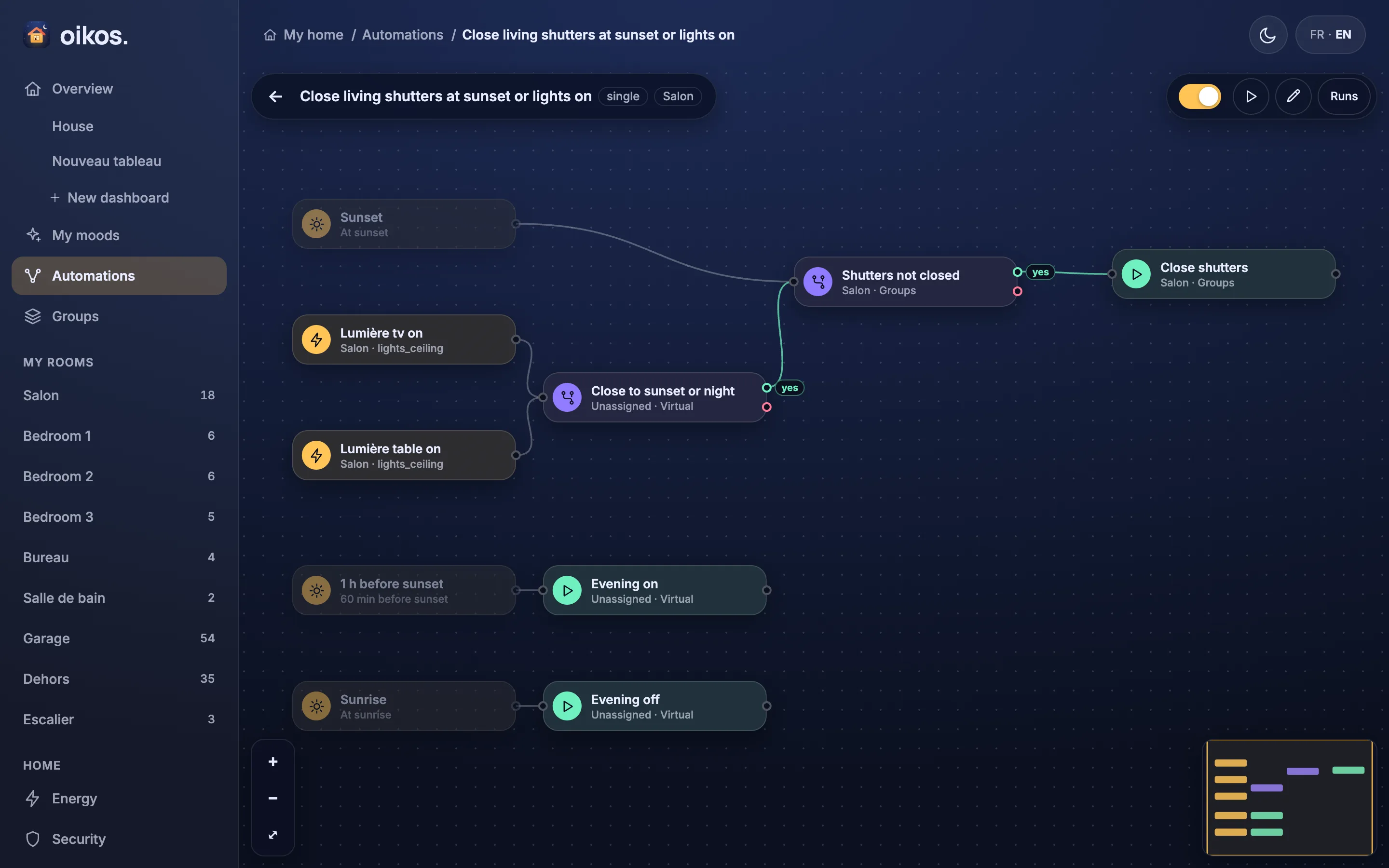
The flow page (/flows/<id>) is a full-bleed canvas. The top left holds a back arrow, the flow's name, its mode tag (single or restart) and its room. The top right holds the enable switch, a run button (Run now), a pencil to edit, and Runs, which opens the recent runs. Zoom buttons (+, −, fit) sit bottom left and a minimap bottom right; the wheel pans, and ⌘/Ctrl-wheel or pinch zooms. Each node is a pill with a coloured icon and a sentence title ("Motion at Entrée", "Turn off LED", "Wait 5 min"), joined by routed wires that go around the cards, with green "yes" and red "no" labels on the two outputs of an if, and a label per output on a switch (the rule, such as "< 18", or "otherwise") or a time-of-day card (the range, such as "07:00–22:30", and "outside"). The last run, or one clicked in the Runs drawer, is replayed on the graph: visited cards and wires lit, the rest dimmed, failed steps red; a run in progress pulses live.
The pencil switches to a React Flow-style editor (it is disabled on an invalid flow; tapping a card does the same on a computer): click a card to select it (amber ring) and edit its settings in the drawer, drag it to move it, drag from an output pin onto another card to wire it, drop a card that has no wires yet onto a wire to splice it in (the wire turns green first; an if passes it on by yes), click a wire for its ✕, press ⌫ to delete the selection (deleting a card between two others wires them together again), ⌘/Ctrl-D to duplicate the selected card, ⌘/Ctrl-Z to undo (add Shift to redo) and Esc to clear the selection or stop a replay. In edit mode the right panel holds the card library, grouped WHEN / AND / THEN / WAIT / FLOW: click a card or drag it onto the canvas to add it, and the library stays open so you can add several. Type an entity name, a device name or a room in its search to list the triggers, checks and actions of every matching entity, sorted by name ignoring case and accents; several words narrow the list (weather rain, or a room plus shutter). Enter adds the highlighted card, and ⌘/Ctrl-Z right after takes it back out, even though the search box still has the focus. Selecting a card on the canvas shows its settings there instead, and Close brings the library back. A card's entity is chosen with the entity picker, not typed: a command card opens on the entities that take a command, a trigger.signal card only remotes, events and tags, and an if card can keep Trigger value. An if card's Value lists what its entity can report, worded in your language (a shutter's Open, Closed, Opening, Closing; a sensor's on/off; a climate's modes; a select's options), and a measurement gets a number box with its unit; Other value… takes anything else (a number, true/false, or text). With Trigger value, the list follows the state trigger that feeds the card. A command card's Action lists what its entity accepts, each with its own fields: a position or temperature, a light's brightness, colour and effect, an alarm code when the panel needs one. Advanced (JSON) at the end of the list takes a command typed by hand. Both lists come from what the device announced in its discovery config. A Manual card has a Value field and a ▶ button (see Manual trigger). A schedule card opens a picker (Every N minutes, Hourly, Daily, Weekdays or Advanced for raw cron) with the next three ticks, and a sun card shows when it fires next. The top bar of the editor has the name field and a room picker, then Tidy (re-lay the graph out), undo, a cancel button (discards the draft) and a save button; nothing reaches the hub until you save.
In edit mode the title bar also holds the flow's room and its mode: an Ignore if running (single) / Restart if running (restart) select (see mode above). Pick Restart if running for "N minutes after the last motion".
New flow on /flows opens an unsaved draft in edit mode; its first Save creates the flow, disabled, under a random UUID (/flows/3f2c…). The id never changes, so renaming a flow keeps its address. Flows written through set_flow keep the id they are given.
On a phone (narrow or touch-only screens) the canvas is view-only: the pencil and New flow are hidden, while pan, pinch-zoom, the drawer, the switch and Run still work.
The REST routes for flows are in the HTTP API.